Bruksanvisning Samsung GT-E2230L Mobiltelefon

Behöver du en bruksanvisning för din Samsung GT-E2230L Mobiltelefon? Nedan kan du se och ladda ner PDF-bruksanvisningen gratis på svenska. Den här produkten har för närvarande 16 vanliga frågor, 0 kommentarer och har 0 röster. Om det här inte är bruksanvisningen du vill ha, vänligen kontakta oss.

Är produkten defekt och erbjuder bruksanvisningen ingen lösning? Gå till ett Repair Café för gratis reparationstjänster.

Bruksanvisning

Loading…
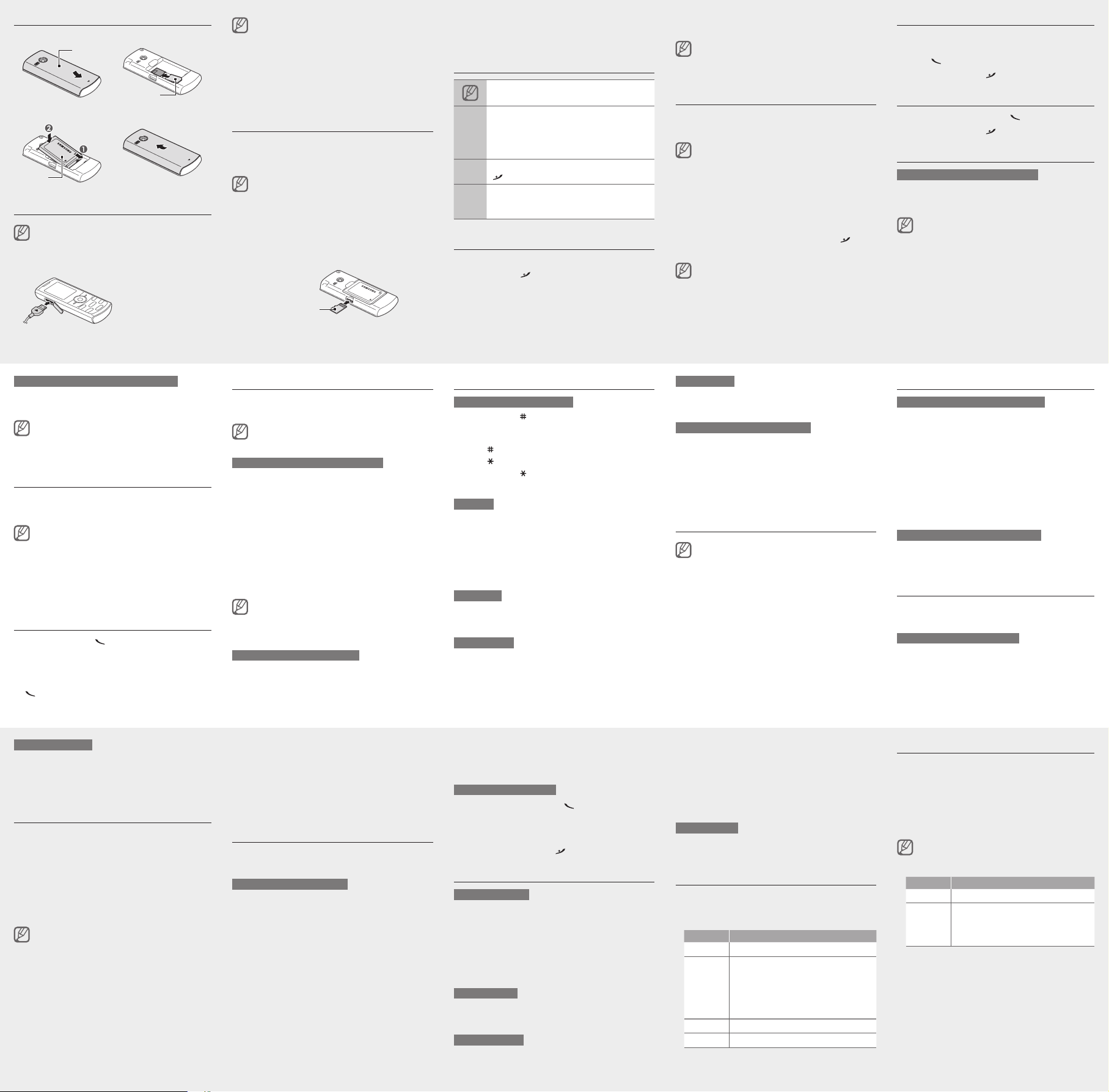
Install the SIM card and battery
1. Remove the back cover and insert the SIM card.
Back cover
SIM card
2. Insert the battery and replace the back cover.
Battery
Charge the battery
If the battery is completely discharged, you cannot
turn on the device, even with the travel adapter
connected. Allow a depleted battery to charge for a
few minutes before you try to turn on the device.
1. Plug a travel adapter.
To AC power outlet
2. When charging is
nished, unplug the
travel adapter.
To adjust the volume of voice during a call
While a call is in progress, press the Navigation key up
or down to adjust the volume.
In noisy environments, you may have difculty
hearing the calls while using the speakerphone
feature. For better audio performance, use the
normal phone mode.
Change your ringtone
1. In Menu mode, select SettingsSound proles.
2. Scroll to the prole you are using.
If you are using the silent or ofine prole, you are
not allowed to change the ringtone.
3. Press <Edit> → Voice call ringtone.
4. Select a memory location (if necessary).
5. Select a ringtone.
To switch to another prole, select it from the list.
Call a recently dialled number
1. In Idle mode, press [ ].
2. Scroll left or right to a call type.
3. Scroll up or down to a number or name.
4. Press the Conrm key to view details of the call or
[
] to dial the number.
Use the smart home screen
The smart home screen allows you to access
applications or view the clock from Idle mode.
When you are using the smart home screen, the
Navigation key does not work as shortcuts.
To add items to the smart home screen
1. In Menu mode, select SettingsDisplay and light
settings Smart home.
2. Press <Edit>.
3. Select the items to display on the smart home
screen.
For the shortcuts toolbar, you can add or delete
the shortcuts as desired. Press <Options> → Edit
shortcuts.
4. Press <Options> → Save.
5. Press the Conrm key.
You can change the idle screen to another style. In
Menu mode, select SettingsDisplay and light
settings Smart home and scroll left or right to a
style you want.
To access the smart home items
Press the Navigation key to scroll through the items on
the smart home screen and press the Conrm key to
select an item.
Enter text
To change the text input mode
Press and hold [ ] to switch between T9 and ABC
modes. Depending on your region, you may be able
to access an input mode for your specic language.
Press [
] to change case or switch to Number mode.
Press [
] to switch to Symbol mode.
Press and hold [
] to select an input mode or change
the input language.
T9 mode
1. Press appropriate alphanumeric keys to enter an
entire word.
2. When the word displays correctly, press [0] to insert
a space. If the correct word does not display, press
the Navigation key up or down to select an alternate
word.
ABC mode
Press an appropriate alphanumeric key until the
character you want appears on the display.
Number mode
Press an appropriate alphanumeric key to enter a
number.
Send and view messages
To send a text or multimedia message
1. In Menu mode, select MessagesCreate
message.
2. Enter a recipient number and scroll down.
3. Enter your message text.
See "Enter text."
For sending as a text message, skip to step 5.
For attaching multimedia, continue with step 4.
4. Press <Options> Add multimedia and add an
item.
5. Press the Conrm key to send the message.
To view text or multimedia messages
1. In Menu mode, select MessagesInbox.
2. Select a text or multimedia message.
Make fake calls
You can simulate an incoming call when you want to get
out of meetings or unwanted conversations.
To activate the fake call feature
In Menu mode, select SettingsCallFake call
Fake call hot keyOn.
Make a call
1. In Idle mode, enter an area code and a phone
number.
2. Press [
] to dial the number.
3. To end the call, press [
].
Answer a call
1. When a call comes in, press [ ].
2. To end the call, press [
].
Adjust the volume
To adjust the volume of the ringtone
1. In Menu mode, select SettingsSound proles.
2. Scroll to the prole you are using.
If you are using the silent or ofine prole, you are
not allowed to adjust the volume of the ringtone.
3. Press <Edit> → Volume.
4. Scroll to Call alert.
5. Scroll left or right to adjust the volume level and
press <Save>.
To make a fake call
In Idle mode, press and hold the Navigation key
down.
When the keys are locked, press the Navigation key
down four times.
Activate the mobile tracker
When someone inserts a new SIM card in your phone,
the mobile tracker feature will automatically send the
contact number to specied recipients to help you
locate and recover your phone. To activate the mobile
tracker,
1. In Menu mode, select SettingsSecurity
Mobile tracker.
2. Enter your password and press <OK>.
The rst time you access Mobile tracker, you will
be prompted to create and conrm a password.
3. Press the Conrm key to turn on the mobile tracker
feature.
4. Scroll down and press the Conrm key to open the
recipient list.
5. Press <Options> → Contacts to open your contact
list.
You can also enter phone numbers including a
country code (with +) in the recipient list. Skip to
step 9.
6. Select a contact.
7. Select a number (if necessary).
8. When you are nished selecting contacts, press
<Add>.
9. Press the Conrm key to save the recipients.
10. Scroll down and enter the sender's name.
11. Press the Conrm key → <Accept>.
Activate and send an SOS message
In an emergency, you can send SOS messages to your
family or friends for help.
To activate the SOS message
1. In Menu mode, select MessagesSettings
SOS messagesSending options.
2. Press the Conrm key to turn on the SOS message.
3. Scroll down and press the Conrm key to open the
recipient list.
4. Press <Options> → Search to open your contact
list.
You can also enter phone numbers including a
country code (with +) in the recipient list. Skip to
step 7.
5. Select a contact.
6. Select a number (if necessary).
7. When you are nished selecting contacts, press the
Conrm key to save the recipients.
8. Select Repeat and set the number of times to repeat
the SOS message.
9. Press <Back> → <Yes>.
To send an SOS message
1. With the keys locked, press [ ] four times to send
an SOS message to preset numbers.
The phone switches to SOS mode and sends the
preset SOS message.
2. To exit SOS mode, press [
].
Use the camera
To capture photos
1. In Menu mode, select Camera.
2. Rotate the phone anti-clockwise to landscape view.
3. Aim the lens at the subject and make any
adjustments.
4. Press the Conrm key.
The photo is saved automatically.
To view photos
In Menu mode, select ApplicationsMy les
Images → a photo le.
To record videos
1. In Menu mode, select Camera.
2. Rotate the phone anti-clockwise to landscape view.
Symbol mode
Press an appropriate alphanumeric key to enter a
symbol.
To use other features for text input
To move the cursor, press the Navigation key.
To delete characters one by one, press < Clear>. To
delete characters quickly, press and hold <Clear>.
To insert a space between characters, press [ 0].
To change line, press [ 0] three times.
To enter punctuation marks, press [ 1].
Add a new contact
The memory location to save new contacts may
be preset depending on your service provider. To
change the memory location, in Menu mode, select
Contacts → <Options> → SettingsSave new
contact to → a memory location.
1. In Idle mode, enter a phone number and press the
Conrm key.
2. Select Create contact → a memory location (if
necessary).
3. Select a number type (if necessary).
4. Enter contact information.
5. Press the Conrm key or press <Options> → Save
to add the contact to memory.
3. Press [1] to switch to the camcorder.
4. Aim the lens at the subject and make any
adjustments.
5. Press the Conrm key.
6. Press <Stop> to stop recording.
The video is saved automatically.
To view videos
In Menu mode, select ApplicationsMy les
Videos → a video le.
Listen to music
1. In Menu mode, select MusicLibrary.
2. Select a music category → a music le.
3. Control playback with the following keys:
Key Function
Conrm Pause or resume playback.
Navigation
Left: Restart playback; Skip backward
(press within 3 seconds); Scan backward
in a le (press and hold).
Right: Skip forward; Scan forward in a le
(press and hold).
Up/Down: Adjust the volume.
1 Change the repeat mode.
2 Activate or deactivate Shufe mode.
3. When the setup wizard opens, customise your phone
as desired by following the screen.
If the battery remains fully discharged or removed
from the device, the date and time will be reset.
To turn your phone off, repeat step 1 above.
Access menus
To access your phone's menus,
1. In Idle mode, press <Menu> to access Menu mode.
You may need to press the Conrm key to access
Menu mode depending on your region or service
provider. When you are using the smart home
screen, you cannot use the Conrm key to access
Menu mode.
2. Use the Navigation key to scroll to a menu or option.
3. Press <Select>, <OK>, or the Conrm key to conrm
the highlighted option.
4. Press <Back> to move up one level; Press [
] to
return to Idle mode.
When you access a menu requiring the PIN2, you
must enter the PIN2 supplied with the SIM card.
For details, contact your service provider.
Samsung is not responsible for any loss of
passwords or private information or other damages
caused by illegal software.
Do not remove the battery before removing the
travel adapter. Doing this may cause damage to
the phone.
To save energy, unplug the travel adapter when not
in use. The travel adapter does not have a power
switch, so you must unplug the travel adapter from
the outlet to interrupt the power supply. The travel
adapter should remain close to the socket when
in use.
Insert a memory card (optional)
Your phone accepts microSD™ or microSDHC™
memory cards up to 8 GB (depending on memory card
manufacturer and type).
Formatting the memory card on a PC may cause
incompatibility with your phone. Format the
memory card only on the phone.
Frequent writing and erasing of data will shorten
the lifespan of memory cards.
1. Remove the back cover.
2. Insert a memory card with the gold-coloured contacts
facing up.
Memory card
3. Push the memory card in the memory card slot until it
locks in place.
4. Replace the back cover.
Instructional icons
Note: notes, usage tips, or additional information
Followed by: the order of options or menus
you must select to perform a step; for example:
In Menu mode, select MessagesCreate
message (represents Messages, followed by
Create message)
[ ]
Square brackets: phone keys; for example:
[
] (represents the Power/End key)
< >
Angled brackets: softkeys that control different
functions at each screen; for example: <OK>
(represents the OK softkey)
Turn your phone on or off
To turn your phone on,
1. Press and hold [
].
2. Enter your PIN and press <OK> (if necessary).
Listen to the FM radio
1. Plug a headset into the phone.
2. In Menu mode, select ApplicationsFM radio.
3. Press the Conrm key to turn on the FM radio.
4. Press <Yes> to start automatic tuning.
The radio scans and saves available stations
automatically.
The rst time you turn on the FM radio, you will be
prompted to start automatic tuning.
5. Control the FM radio with the following keys:
Key Function
Conrm Turn the FM radio on or off.
Navigation
Left/Right: Fine-tune the frequency;
Search for an available radio station
(press and hold).
Up/Down: Adjust the volume.
Ladda ner bruksanvisning i Engelska (PDF, 0.51 MB)
(Tänk på miljön och skriv endast ut denna bruksanvisning om det verkligen är nödvändigt)

Loading…

Betyg

Berätta vad du tycker om Samsung GT-E2230L Mobiltelefon genom att betygsätta den. Vill du dela med dig av dina åsikter om denna produkt eller ställa en fråga? Lämna en kommentar nederst på sidan.
Är du nöjd med Samsung GT-E2230L Mobiltelefon?
Ja Nej
Bli den första personen som betygsätter denna produkt
0 röster

Delta i konversationen om denna produkt

Här kan du dela vad du tycker om Samsung GT-E2230L Mobiltelefon. Om du har en fråga, läs först noggrant igenom manualen. Att begära en manual kan göras genom att använda vårt kontaktformulär.

Mer om denna bruksanvisning

Vi förstår att det är trevligt att ha en pappersbruksanvisning för din Samsung GT-E2230L Mobiltelefon. Du kan alltid ladda ner bruksanvisningen från vår hemsida och skriva ut den själv. Om du vill ha en originalbruksanvisning rekommenderar vi att du kontaktar Samsung. De kanske kan tillhandahålla en originalbruksanvisning. Letar du efter bruksanvisningen för din Samsung GT-E2230L Mobiltelefon på ett annat språk? Välj ditt föredragna språk på vår hemsida och sök efter modellnumret för att se om vi har det tillgängligt.

Specifikationer

Märke Samsung
Modell GT-E2230L
Kategori Mobiltelefoner
Filtyp PDF
Filstorlek 0.51 MB

Alla bruksanvisningar för Samsung Mobiltelefoner
Fler bruksanvisningar för Mobiltelefoner

Vanliga frågor om Samsung GT-E2230L Mobiltelefon

Vårt supportteam söker efter användbar produktinformation och svar på vanliga frågor. Om du hittar en felaktighet bland våra vanliga frågor uppskattar vi om du meddelar oss detta via vårt kontaktformulär.

Mitt SIM-kort passar inte min mobiltelefon, varför är det? Verifierad

Det finns flera SIM-kortstorlekar, vanliga, mikro och nano. Det är möjligt att använda en adapter eller att göra SIM-kortet mindre.

Detta hjälpte (1533) Läs mer

Kan jag använda min mobiltelefon när jag laddar den? Verifierad

Ja, du kan använda din mobiltelefon medan du laddar den. Laddningsprocessen går långsammare när du gör det.

Detta hjälpte (1354) Läs mer

Vad är en PUK-kod? Verifierad

PUK står för Personal Unblocking Code och behövs för att avblockera din telefon efter att du har angett en felaktig PIN-kod tre gånger. Om PUK inte längre är tillgänglig kan det ofta begäras från leverantören.

Detta hjälpte (790) Läs mer

Min telefon är i gott skick, men när jag ringer till människor som har problem med att höra mig, varför är det så? Verifierad

Det är möjligt att smuts har samlats i mikrofonens rutnät och dämpar ljudet. Det bästa sättet att rengöra detta är med tryckluft. Om du är osäker, gör detta av en professionell.

Detta hjälpte (684) Läs mer

När jag ansluter min enhet till laddaren laddas den dåligt eller inte alls, varför är det så? Verifierad

Det är möjligt att smuts har samlats i öppningen där laddaren är ansluten, vilket förhindrar att den kommer i rätt kontakt. Det bästa sättet att rengöra detta är med tryckluft. Om du är osäker, gör detta av en professionell.

Detta hjälpte (376) Läs mer

Måste jag ladda ur litiumjonbatteriet helt innan jag laddar upp det igen? Verifierad

Nej, det behövs inte. Det rekommenderades förr i tiden, med gamla batterier. Litiumjonbatterier kan laddas efter användningen och när som helst kopplas loss från laddaren.

Detta hjälpte (370) Läs mer

Vad betyder IMEI? Verifierad

IMEI står för International Mobile Equipment Identity och är ett (ofta) unikt nummer som används för att identifiera mobila enheter som surfplattor och smartphones och skydda dem mot stöld.

Detta hjälpte (332) Läs mer

När jag ansluter en hörlur till min enhet fungerar den inte korrekt, vad kan jag göra? Verifierad

Det är möjligt att smuts har samlats i öppningen där hörlurarna är ansluten, vilket förhindrar att den kommer i rätt kontakt. Det bästa sättet att rengöra detta är med tryckluft. Om du är osäker, gör detta av en professionell.

Detta hjälpte (291) Läs mer

Fungerar Bluetooth genom väggar och tak? Verifierad

En Bluetooth-signal fungerar genom väggar och tak, såvida inte dessa är gjorda av metall. Beroende på tjockleken och väggens material kan signalen förlora i styrka.

Detta hjälpte (273) Läs mer

Batteriet i min telefon tar slut snabbt när jag är ute, varför är det? Verifierad

Litiumjonbatterier klarar inte låga temperaturer. Om utetemperaturerna är nära att frysa tappas batteriet snabbare än normalt, även utan att använda telefonen. När telefonen har återgått till rumstemperatur visar den antagligen en batteriprocentandel nära den som den var.

Detta hjälpte (263) Läs mer

Vad kan jag bäst använda för att rengöra skärmen på min mobila enhet? Verifierad

Det är bäst att använda en mikrofiberduk, eventuellt med ett specialtvättmedel. Använd aldrig kökshanddukar eller andra pappersdukar, de lämnar repor!

Detta hjälpte (246) Läs mer

Hur ska man förvara litiumjonbatterier som man inte använder under en längre period? Verifierad

Bästa sätt att förvara ett litiumjonbatteri är vid en temperatur mellan +5 °C och 45 °C. Det är också en god idé att se till att batteriet är laddat till cirka 67 % innan det läggs undan för förvaring.

Detta hjälpte (241) Läs mer

Vad betyder VoIP? Verifierad

VoIP betyder Voice over IP (Internet Protocol) och är alltså telefoni över internet.

Detta hjälpte (240) Läs mer

Under vilka förhållanden fungerar mitt litiumjonbatteri optimalt? Verifierad

Litiumjonbatterier fungerar bäst vid en temperatur mellan 5 °C och 45 °C. Vid mycket kallt eller varmt väder kan du märka att batteriet tar slut snabbare. Vi rekommenderar att inte ladda batteriet vid temperaturer under +5 °C eller över +45 °C.

Detta hjälpte (237) Läs mer

Måste jag rengöra skärmen på min enhet innan jag använder ett skärmskydd? Verifierad

Ja, ett skärmskydd fäster bäst på fett- och dammfria ytor.

Detta hjälpte (231) Läs mer

Hur kan jag göra en maskinvaruåterställning på en Samsung-mobiltelefon? Verifierad

För de flesta modellerna kan du använda följande kombination: Tryck samtidigt på på/av-knappen, volym upp-knappen och hemknappen medan du startar telefonen. VIKTIGT: Om du gör detta raderas alla uppgifter. De kan inte återställas.

Detta hjälpte (119) Läs mer
Bruksanvisning Samsung GT-E2230L Mobiltelefon

Relaterade produkter

Relaterade kategorier

×
Download