Bruksanvisning Oyen Digital MiniPro Hårddisk

Behöver du en bruksanvisning för din Oyen Digital MiniPro Hårddisk? Nedan kan du se och ladda ner PDF-bruksanvisningen gratis på svenska. Den här produkten har för närvarande 3 vanliga frågor, 0 kommentarer och har 0 röster. Om det här inte är bruksanvisningen du vill ha, vänligen kontakta oss.

Är produkten defekt och erbjuder bruksanvisningen ingen lösning? Gå till ett Repair Café för gratis reparationstjänster.

Bruksanvisning

Loading…
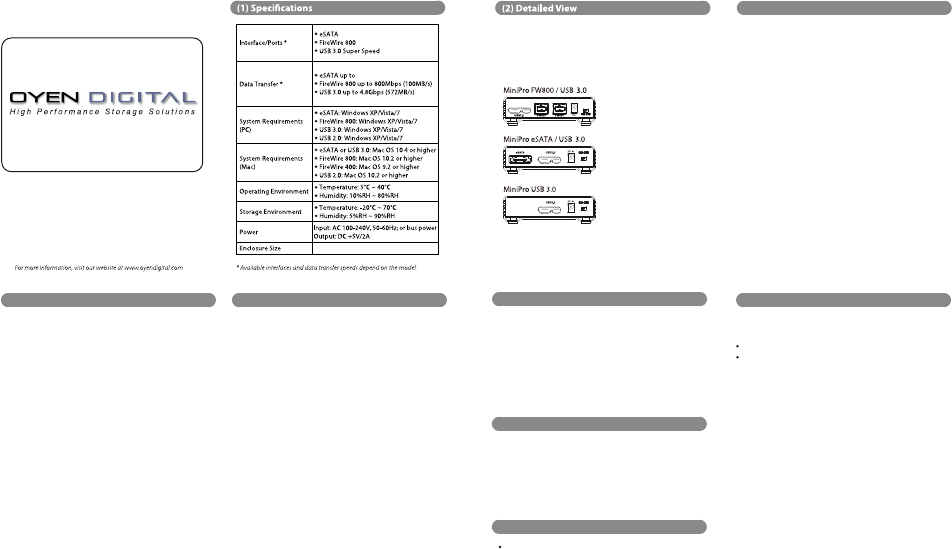
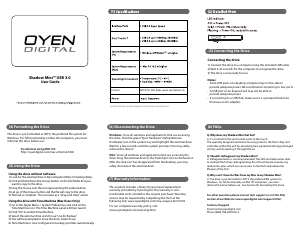
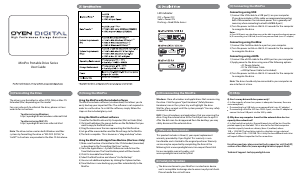
MiniPro Portable Drive Series
User Guide
(3) Connecting the MiniPro
Connecting using USB:
1) Connect the USB cable to a USB port(s) on your computer.
(If your drive includes a USB y-cable, we recommend connecting
both USB connectors for maximum power. This is generally not
necessary when connecting to a built-in USB 3.0 port.)
2) Turn the power switch on. Wait 5-20 seconds for the computer
to recognize the drive.
Notes:
a) Front USB ports on a desktop may not be able to provide adequate power.
b) If connecting to a USB Hub, it must be a powered hub (uses AC adapter).
Connecting using FireWire:
1) Connect the FireWire cable to a port on your computer.
2) Turn the power switch on. Wait 5-20 seconds for the computer
to recognize the drive.
Connecting using eSATA:
1) Connect the eSATA cable to the eSATA port on your computer.
2) Apply power to the drive using one of the following options:
• AC Power Adapter
• DC to USB Power Cable
• eSATAp Power Cable (not included)
4) Turn the power switch on. Wait 5-20 seconds for the computer
to recognize the drive.
Note: The drive should only be connected to your computer via
one interface at a time.
.
/8
/8
/8
/8
4.9 x 3.2 x 1.0 inches
6Gbps
The drive is pre-formatted as either NTFS (Win) or Mac OS
Extended (Mac) depending on the model.
For users who wish to reformat the drive, please visit our
website for instructions.
To reformat using Windows:
http://oyendigital.com/windows-reformat.html
To reformat using MAC OS:
http://oyendigital.com/mac-reformat.html
Note: The drive can be used on both Windows and Mac
systems by formatting the drive as “MS-DOS (FAT32)” or
exFAT. Instructions are provided in the Mac OS link above.
(4) Formatting the Drive (5) Using the MiniPro
(6) Disconnecting the MiniPro
(7) Warranty Information
(9) FAQs
(8) Safety Information
Using the MiniPro with the included software
The MiniPro includes software (via download) that allows you to
easily backup your important les. The software is not required in
order to use the drive. To install the software, simply follow the
steps on the included glossy card.
Using the MiniPro without software
1) Look for the MiniPro drive in My Computer (Win) or Finder (Mac).
2) Click and hold down the mouse button on the le/folder that you
want to copy to the MiniPro drive.
3) Drag the mouse over the icon representing the MiniPro drive.
4) Let go of the mouse button and the le will copy to the MiniPro.
5) The task is complete. This is known as a "drag-and-drop" action.
Using the MiniPro with Apple Time Machine (Mac Users Only)
1) Make sure the drive is formatted as Mac OS Extended (Journaled)
as described in the “Formatting the Drive section.
2) Go to the Apple Menu > System Preferences and click on the
Time Machine icon. The Time Machine panel will then launch.
3) Click On to enable Time Machine.
4) Select the MiniPro drive and choose “Use for Backup.
5) You can set additional options by clicking the Options button.
6) Time Machine is now backing up your Mac automatically to the
MiniPro.
The drive contained in your MiniPro is an electronic device
and is susceptible to damage due to excessive physical shock.
Please handle the unit with care.
Q: Can I use my drive with bus power only?
A: In the majority of cases bus power is adequate. However, there are
some exceptions;
If connecting to a USB hub, use a powered hub (uses AC adapter).
If connecting a MiniPro SSD to a USB 2.0 port, use the AC adapter or
connect to two USB ports via the USB y-cable.
Q: Why does my computer show that the external drive has less
capacity than advertised?
A: In the hard drive industry the partitioned size will be less than the
printed capacity on the label. This is due to the fact that computers
calculate capacity based on a binary (base 2) method, where
1GB = 1024 MB. The hard drive industry calculates using a decimal
method, where 1GB = 1000 MB. This is why the two dierent industries
will report dierent capacities for the same drive.
For other questions please contact tech support or visit the FAQ
section of our Web site (www.oyendigital.com/support.html).
Technical Support: [email protected]om
This product includes a three (3) year repair/replacement
warranty provided by Oyen Digital. This warranty is non-
transferable and is limited to the original purchaser. Warranty
service may be requested by completing the form at the
following link: www.oyendigital.com/rma-request-form.html
For our complete warranty policy, visit:
www.oyendigital.com/warranty.html
Windows: Close all windows and applications that are accessing
the drive. Click the green “Eject Hardware (Safely Remove
Hardware) icon in the system tray and highlight the drive.
Wait for a few seconds until the system prompts You may safely
remove this device.
MAC: Close all windows and applications that are accessing the
drive. Drag the external drive to the Trash/Eject icon to eject it.
After the disk icon has disappeared from the desktop, you may
safely disconnect the external drive.
LED indicator:
OFF = Power OFF
Solid = Power ON
Flashing = Read/Write Access
Ladda ner bruksanvisning i Engelska (PDF, 0.2 MB)
(Tänk på miljön och skriv endast ut denna bruksanvisning om det verkligen är nödvändigt)

Loading…

Betyg

Berätta vad du tycker om Oyen Digital MiniPro Hårddisk genom att betygsätta den. Vill du dela med dig av dina åsikter om denna produkt eller ställa en fråga? Lämna en kommentar nederst på sidan.
Är du nöjd med Oyen Digital MiniPro Hårddisk?
Ja Nej
Bli den första personen som betygsätter denna produkt
0 röster

Delta i konversationen om denna produkt

Här kan du dela vad du tycker om Oyen Digital MiniPro Hårddisk. Om du har en fråga, läs först noggrant igenom manualen. Att begära en manual kan göras genom att använda vårt kontaktformulär.

Mer om denna bruksanvisning

Vi förstår att det är trevligt att ha en pappersbruksanvisning för din Oyen Digital MiniPro Hårddisk. Du kan alltid ladda ner bruksanvisningen från vår hemsida och skriva ut den själv. Om du vill ha en originalbruksanvisning rekommenderar vi att du kontaktar Oyen Digital. De kanske kan tillhandahålla en originalbruksanvisning. Letar du efter bruksanvisningen för din Oyen Digital MiniPro Hårddisk på ett annat språk? Välj ditt föredragna språk på vår hemsida och sök efter modellnumret för att se om vi har det tillgängligt.

Specifikationer

Märke Oyen Digital
Modell MiniPro
Kategori Hårddiskar
Filtyp PDF
Filstorlek 0.2 MB

Alla bruksanvisningar för Oyen Digital Hårddiskar
Fler bruksanvisningar för Hårddiskar

Vanliga frågor om Oyen Digital MiniPro Hårddisk

Vårt supportteam söker efter användbar produktinformation och svar på vanliga frågor. Om du hittar en felaktighet bland våra vanliga frågor uppskattar vi om du meddelar oss detta via vårt kontaktformulär.

Jag kan inte kopiera stora filer till min hårddiskenhet. Varför? Verifierad

Det är möjligt att hårddiskenheten använder filsystemet FAT32. Det begränsar filstorleken till cirka 4 GB men kan orsaka problem för filer på 2 GB och uppåt. För att kunna hantera större filer måste hårddiskenheten formateras till ett annat filsystem, till exempel NTFS. Varning! När du formaterar hårddiskenheten försvinner alla filer från hårddisken!

Detta hjälpte (48) Läs mer

Vad är skillnaden mellan en hårddisk och en SSD? Verifierad

En hårddisk har flera skivor som rör sig. Det gör att stora mängder data kan lagras, men använder mycket ström och är sårbar. En SSD har inga rörliga delar, men använder marker som ett USB-minne. Det har fördelen att det är snabbt och lätt, men möjliggör mindre datalagring.

Detta hjälpte (13) Läs mer

Hur mycket är kilobyte, megabyte, gigabyte och terabyte? Verifierad

En kilobyte (kB) är 1 000 byte. 1 megabyte (MB) = 1 000 kilobyte. 1 gigabyte (GB) = 1 000 megabyte. 1 terabyte (TB) = 1 000 gigabyte.

Detta hjälpte (8) Läs mer
Bruksanvisning Oyen Digital MiniPro Hårddisk

Relaterade produkter

Relaterade kategorier

×
Download