Bruksanvisning LG GS101GO Mobiltelefon

Behöver du en bruksanvisning för din LG GS101GO Mobiltelefon? Nedan kan du se och ladda ner PDF-bruksanvisningen gratis på svenska. Den här produkten har för närvarande 15 vanliga frågor, 0 kommentarer och har 0 röster. Om det här inte är bruksanvisningen du vill ha, vänligen kontakta oss.

Är produkten defekt och erbjuder bruksanvisningen ingen lösning? Gå till ett Repair Café för gratis reparationstjänster.

Bruksanvisning

Loading…
Calls
Making a call
1
Key in the number using the keypad.
2
Pr
ess to initiate the call.
3 To end the call, press
.
TIP! To enter + when making an international call, press and hold
0
.
Making a call from your contacts
1 Press to open the address book.
2 Using the keypad, enter the  rst letter of the contact you want to call.
3 To scroll through the contacts use up and down navigation keys. And to scroll through their di erent numbers use left
and right navigation keys.
4 Press
to initiate the call.
Answering and rejecting a call
When your phone rings, press Accept or press to answer the call. While your phone is ringing, select Silent to mute
the ringing. This is great if you have forgotten to change your pro le to Silent for a meeting.
Press or Reject to reject the incoming call.
TIP! You can change the settings on your phone to answer your calls in di erent ways. Press
Menu
, select
Settings
and
choose
Call
. Select
Answer mode
and choose from
Any key
or
send key only
.
Changing the call settings
You can set the menu relevant to a call. Press
Menu
, select Settings and choose Call.
• Call divert – Select methods of call divert.
Call waiting – Select active or cancel call waiting.
Checking your call history
You can check the record of all, missed, dialled, received calls and call duration. The number and name (if available)
are displayed together with the date and time at which the call was made. You can also view the number of times you
have called. Press Menu, select Call history.
Contacts
Searching for a contact
You can search for a contact in your contacts.
1 Press Contacts and choose Search, select Contacts from the Menu screen or press from the standby screen.
2 Using the keypad enter the  rst letter of the contact you want to call.
3 To scroll through the contacts and their di erent numbers use
and .
Messaging
Sending a message
1 Press Menu, select Messaging and choose New message.
2 A new message editor will open. The default setting of the message editor is SMS mode.
3 Enter your message using either the T9 predictive mode or Abc manual mode. You can switch text input mode by
pressing
.
4 Press Options and choose Insert to add an Symbol, Template, Contact, Business card.
5 Press Send to.
6 Enter the phone number or press Options and select Contacts or Recent list to open your contacts list select the
number and press insert then option.
7 Press Send.
Entering text
You can enter alphanumeric characters using the phone’s keypad. For example, storing names in Contacts, writing a
message and creating scheduling events in the calendar all require entering text. The following text input methods are
available in the phone: T9 predictive mode, ABC manual mode and 123 mode.
Note: Some  elds may allow only one text input mode (e.g. telephone number in address book  elds).
T9 predictive mode
T9 predictive mode uses a built-in dictionary to recognise words youre writing based on the key sequences you press.
Simply press the number key associated with the letter you want to enter, and the dictionary will recognise the word once
all the letters are entered.
ABC manual mode
This mode allows you to enter letters by pressing the key labeled with the required letter once, twice, three or four times
until the letter is displayed.
123 mode
Type numbers using one keystroke per number. You can also add numbers while remaining in letter modes by pressing
and holding the desired key.
Calendar
Using the calendar ( Menu > Calendar )
When you enter this menu, a calendar appears. A square cursor is located on the current date. You can move the cursor to
another date using the navigation keys.
Games
Your GS101 comes with preloaded games to keep you amused when you have time to spare. If you choose to download
any additional games or applications they will be saved into this folder. Press Menu and select Games.
Pro les
Changing your pro les
You change your pro le by pressing Menu>Pro les, then choose from General, Silent, Vibrate only, Outdoor, Flight mode
and Headset.
Using  ight mode ( Menu > Pro les > Flight mode )
Use this function to switch the  ight mode On or O You will not be able to make calls, Connect to the internet, Send
messages when Flight mode is switched On.
Organiser / Tools
Setting your alarm ( Menu > Organiser > Alarm )
You can set up to 3 alarm clocks to go o at a speci ed time.
Adding a memo ( Menu > Organiser > Memo )
You can register your own memos here.
Setting your fake call ( Menu > Tools > Fake call )
You can send the fake call after setting time.
Using your calculator ( Menu > Tools > Calculator )
The calculator provides the basic arithmetic functions: addition, subtraction, multiplication and division.
Using the stopwatch ( Menu > Tools > Stopwatch )
This option allows you to use the function of a stopwatch.
Converting a unit ( Menu > Tools > Unit converter )
This converts many measurements into a unit you want.
Adding a city to your world clock ( Menu > Tools > World clock )
You can check the current time of Greenwich Mean Time (GMT) and major cities around the world.
SIM services ( Menu > Tools > SIM services )
This feature depends on SIM and the network services. In case the SIM card supports SAT (i.e. SIM Application Toolkit)
services, this menu will be the operator speci c service name stored on the SIM card.
Settings
Changing your date & time ( Menu > Settings > Date & Time )
You can set functions relating to the date and time.
Changing the language ( Menu > Settings > Language )
You can change the language for the display texts in your phone. This change will also a ect the language input mode.
Changing your display settings ( Menu > Settings > Display )
You can change the settings for the phone display.
GS101 User Guide
-
English
This guide will help you understand your new mobile phone. It will provide you
with useful explanations of features on your phone.
Some of the contents in this manual may di er from your phone depending on
the software of the phone or your service provider.
P/N: MMBB0366359 (1.0)
Disposal of your old appliance
1 When this crossed-out wheeled bin symbol is attached to a product it means the
product is covered by the European Directive 2002/96/EC.
2 All electrical and electronic products should be disposed of separately from the
municipal waste stream via designated collection facilities appointed by the
government or the local authorities.
3 The correct disposal of your old appliance will help prevent potential negative
consequences for the environment and human health.
4
For more detailed information about disposal of your old appliance, please
contact your city o ce, waste disposal service or the shop where you purchased
the product.
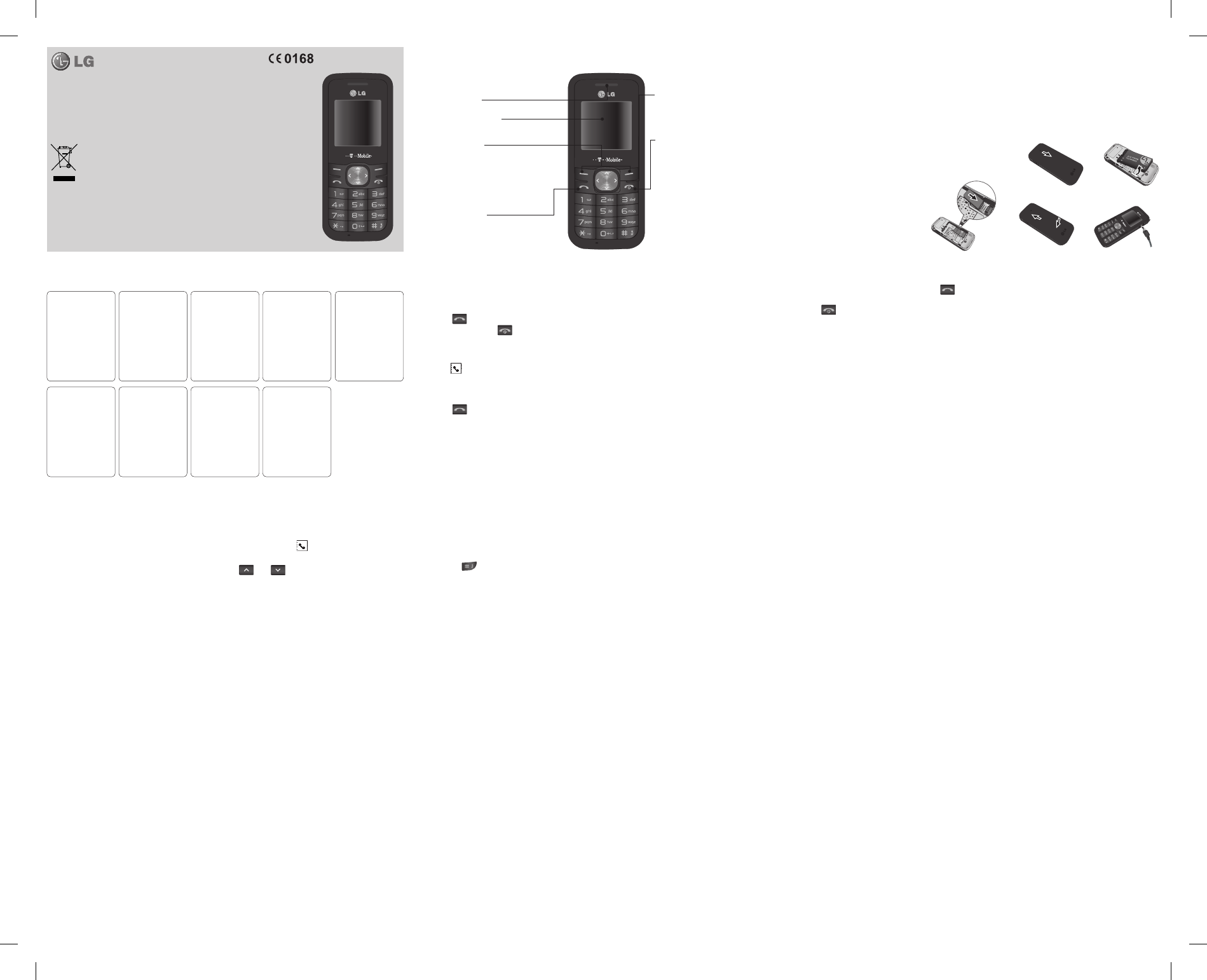
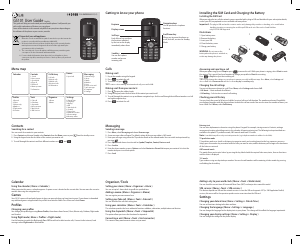
Getting to know your phone
Earpiece
Display screen
Soft keys
Each of these keys performs
the functions indicated
by the text on the display
immediately above them.
End/Power key
Allows you to power the phone on
or o , end calls, or return to Standby
Mode.
Send key
You can dial a phone
number and answer
incoming calls.
Navigation keys
Use for quick access to phone
functions.
Menu map
Call history
1 All calls
2 Missed calls
3 Dialled calls
4 Received calls
5 Call duration
Calendar
Pro les
1 General
2 Silent
3 Vibrate only
4 Outdoor
5 Flight mode
6 Headset
Contacts
1 Search
2 New contact
3 Speed dials
4 Copy all
5 Delete all
6 Memory status
7 Information
Messaging
1 New message
2 Inbox
3 Drafts
4 Outbox
5 Sent
6 Listen voice mail
7 Info messages
8 Templates
9 Settings
Settings
1 Date & Time
2 Language
3 Display
4 Call
5 Auto keylock
6 Security
7 Power save
8 Network selection
9 Reset settings
0 Memory status
Organiser
1 Alarm
2 Memo
Games
1 Space ball
Tools
1 Fake call
2 Calculator
3 Stopwatch
4 Unit converter
5 World clock
6 SIM Services
Installing the SIM Card and Charging the Battery
Installing the SIM Card
When you subscribe to a cellular network, you are provided with a plug-in SIM card loaded with your subscription details,
such as your PIN, any optional services available and many others.
Important!The plug-in SIM card and its contacts can be easily damaged by scratches or bending, so be careful when
handling, inserting or removing the card. Keep all SIM cards out of the reach of small children.
› only 2G/2.5G SIM supported
Illustrations
1 Open battery cover
2 Remove the battery
3 Insert your SIM
4 Close the battery cover
5 Charge your battery
WARNING: Do not remove the
battery when the phone is switched on,
as this may damage the phone.
12
5
43
Ladda ner bruksanvisning i Engelska (PDF, 0.89 MB)
(Tänk på miljön och skriv endast ut denna bruksanvisning om det verkligen är nödvändigt)

Loading…

Betyg

Berätta vad du tycker om LG GS101GO Mobiltelefon genom att betygsätta den. Vill du dela med dig av dina åsikter om denna produkt eller ställa en fråga? Lämna en kommentar nederst på sidan.
Är du nöjd med LG GS101GO Mobiltelefon?
Ja Nej
Bli den första personen som betygsätter denna produkt
0 röster

Delta i konversationen om denna produkt

Här kan du dela vad du tycker om LG GS101GO Mobiltelefon. Om du har en fråga, läs först noggrant igenom manualen. Att begära en manual kan göras genom att använda vårt kontaktformulär.

Mer om denna bruksanvisning

Vi förstår att det är trevligt att ha en pappersbruksanvisning för din LG GS101GO Mobiltelefon. Du kan alltid ladda ner bruksanvisningen från vår hemsida och skriva ut den själv. Om du vill ha en originalbruksanvisning rekommenderar vi att du kontaktar LG. De kanske kan tillhandahålla en originalbruksanvisning. Letar du efter bruksanvisningen för din LG GS101GO Mobiltelefon på ett annat språk? Välj ditt föredragna språk på vår hemsida och sök efter modellnumret för att se om vi har det tillgängligt.

Specifikationer

Märke LG
Modell GS101GO
Kategori Mobiltelefoner
Filtyp PDF
Filstorlek 0.89 MB

Alla bruksanvisningar för LG Mobiltelefoner
Fler bruksanvisningar för Mobiltelefoner

Vanliga frågor om LG GS101GO Mobiltelefon

Vårt supportteam söker efter användbar produktinformation och svar på vanliga frågor. Om du hittar en felaktighet bland våra vanliga frågor uppskattar vi om du meddelar oss detta via vårt kontaktformulär.

Mitt SIM-kort passar inte min mobiltelefon, varför är det? Verifierad

Det finns flera SIM-kortstorlekar, vanliga, mikro och nano. Det är möjligt att använda en adapter eller att göra SIM-kortet mindre.

Detta hjälpte (1525) Läs mer

Kan jag använda min mobiltelefon när jag laddar den? Verifierad

Ja, du kan använda din mobiltelefon medan du laddar den. Laddningsprocessen går långsammare när du gör det.

Detta hjälpte (1347) Läs mer

Vad är en PUK-kod? Verifierad

PUK står för Personal Unblocking Code och behövs för att avblockera din telefon efter att du har angett en felaktig PIN-kod tre gånger. Om PUK inte längre är tillgänglig kan det ofta begäras från leverantören.

Detta hjälpte (782) Läs mer

Min telefon är i gott skick, men när jag ringer till människor som har problem med att höra mig, varför är det så? Verifierad

Det är möjligt att smuts har samlats i mikrofonens rutnät och dämpar ljudet. Det bästa sättet att rengöra detta är med tryckluft. Om du är osäker, gör detta av en professionell.

Detta hjälpte (677) Läs mer

När jag ansluter min enhet till laddaren laddas den dåligt eller inte alls, varför är det så? Verifierad

Det är möjligt att smuts har samlats i öppningen där laddaren är ansluten, vilket förhindrar att den kommer i rätt kontakt. Det bästa sättet att rengöra detta är med tryckluft. Om du är osäker, gör detta av en professionell.

Detta hjälpte (373) Läs mer

Måste jag ladda ur litiumjonbatteriet helt innan jag laddar upp det igen? Verifierad

Nej, det behövs inte. Det rekommenderades förr i tiden, med gamla batterier. Litiumjonbatterier kan laddas efter användningen och när som helst kopplas loss från laddaren.

Detta hjälpte (368) Läs mer

Vad betyder IMEI? Verifierad

IMEI står för International Mobile Equipment Identity och är ett (ofta) unikt nummer som används för att identifiera mobila enheter som surfplattor och smartphones och skydda dem mot stöld.

Detta hjälpte (332) Läs mer

När jag ansluter en hörlur till min enhet fungerar den inte korrekt, vad kan jag göra? Verifierad

Det är möjligt att smuts har samlats i öppningen där hörlurarna är ansluten, vilket förhindrar att den kommer i rätt kontakt. Det bästa sättet att rengöra detta är med tryckluft. Om du är osäker, gör detta av en professionell.

Detta hjälpte (291) Läs mer

Fungerar Bluetooth genom väggar och tak? Verifierad

En Bluetooth-signal fungerar genom väggar och tak, såvida inte dessa är gjorda av metall. Beroende på tjockleken och väggens material kan signalen förlora i styrka.

Detta hjälpte (273) Läs mer

Batteriet i min telefon tar slut snabbt när jag är ute, varför är det? Verifierad

Litiumjonbatterier klarar inte låga temperaturer. Om utetemperaturerna är nära att frysa tappas batteriet snabbare än normalt, även utan att använda telefonen. När telefonen har återgått till rumstemperatur visar den antagligen en batteriprocentandel nära den som den var.

Detta hjälpte (263) Läs mer

Vad kan jag bäst använda för att rengöra skärmen på min mobila enhet? Verifierad

Det är bäst att använda en mikrofiberduk, eventuellt med ett specialtvättmedel. Använd aldrig kökshanddukar eller andra pappersdukar, de lämnar repor!

Detta hjälpte (246) Läs mer

Hur ska man förvara litiumjonbatterier som man inte använder under en längre period? Verifierad

Bästa sätt att förvara ett litiumjonbatteri är vid en temperatur mellan +5 °C och 45 °C. Det är också en god idé att se till att batteriet är laddat till cirka 67 % innan det läggs undan för förvaring.

Detta hjälpte (241) Läs mer

Vad betyder VoIP? Verifierad

VoIP betyder Voice over IP (Internet Protocol) och är alltså telefoni över internet.

Detta hjälpte (240) Läs mer

Under vilka förhållanden fungerar mitt litiumjonbatteri optimalt? Verifierad

Litiumjonbatterier fungerar bäst vid en temperatur mellan 5 °C och 45 °C. Vid mycket kallt eller varmt väder kan du märka att batteriet tar slut snabbare. Vi rekommenderar att inte ladda batteriet vid temperaturer under +5 °C eller över +45 °C.

Detta hjälpte (237) Läs mer

Måste jag rengöra skärmen på min enhet innan jag använder ett skärmskydd? Verifierad

Ja, ett skärmskydd fäster bäst på fett- och dammfria ytor.

Detta hjälpte (231) Läs mer
Bruksanvisning LG GS101GO Mobiltelefon

Relaterade produkter

Relaterade kategorier

×
Download