8 Next, click on Properties to open the Game Controller Properties window. Click on the Test tab and try out
the buttons and controls of your new joystick. The button and trigger indicators should light up as you press the
corresponding control and the throttle indicator should move up and down when you move the throttle through
its full range of movement.
9 After testing your joystick, click OK twice to finish. Now it’s time to load your favorite game and enjoy the fun!
TECHNICAL SUPPORT
Can't get started - don't worry, we're here to help you!
Nearly all the products that are returned to us as faulty are not faulty at all - they have just not been installed
properly.
If you experience any difficulty with this product, please first visit our website www.saitek.com. The technical support
area will provide you with all the information you need to get the most out of your product and should solve any
problems you might have.
If you do not have access to the internet, or if the website cannot answer your question, please contact your local
Saitek Technical Support Team. We aim to offer quick, comprehensive and thorough technical support to all our
users so, before you call, please make sure you have all the relevant information at hand.
To find your local Saitek Technical Support Center, please see the separate Technical Support Center sheet that
came packaged with this product.
Information for Customers in the United States
FCC Compliance and Advisory Statement
Warning: Changes or modifications to this unit not expressly approved by the party responsible for compliance could
void the user's authority to operate the equipment.
This device complies with Part 15 of the FCC Rules. Operation is subject to the following two conditions:
1 This device may not cause harmful interference, and;
2 This device must accept any interference received, including interference that may cause undesired operation.
NOTE: This equipment has been tested and found to comply with the limits for a Class B digital device, pursuant to
Part 15 of the FCC Rules. These limits are designed to provide reasonable protection against harmful interference in
a residential installation. This equipment generates, uses and can radiate radio frequency energy and, if not installed
and used in accordance with the instructions, may cause harmful interference to radio communications. However,
there is no guarantee that interference will not occur in a particular installation. If this equipment does cause harmful
interference to radio or television reception, which can be determined by turning the equipment off and on, the user
is encouraged to try to correct the interference by one or more of the following measures:
• Reorient or relocate the receiving antenna;
• Increase the separation between the equipment and receiver;
• Connect the equipment into an outlet on a circuit different from that to which the receiver is connected;
• Consult the dealer or an experienced radio/TV technician for help.
Saitek Industries, 2295 Jefferson Street, Torrance, CA 90501, USA
Conditions of Warranty
1 Warranty period is 2 years from date of purchase with proof of purchase submitted.
2 Operating instructions must be followed.
3 Specifically excludes any damages associated with leakage of batteries.
Note: Batteries can leak when left unused in a product for a period of time, so it is advisable to inspect batteries
regularly.
4 Product must not have been damaged as a result of defacement, misuse, abuse, neglect, accident, destruction
or alteration of the serial number, improper electrical voltages or currents, repair, alteration or maintenance by
any person or party other than our own service facility or an authorized service center, use or installation of non-
Saitek replacement parts in the product or the modification of this product in any way, or the incorporation of
this product into any other products, or damage to the product caused by accident, fire, floods, lightning, or acts
of God, or any use violative of instructions furnished by Saitek plc.
5 Obligations of Saitek shall be limited to repair or replacement with the same or similar unit, at our option. To
obtain repairs under this warranty, present the product and proof of purchase (eg, bill or invoice) to the
authorized Saitek Technical Support Center (listed on the separate sheet packaged with this product)
transportation charges prepaid. Any requirements that conflict with any state or Federal laws, rules and/or
obligations shall not be enforceable in that particular territory and Saitek will adhere to those laws, rules, and/or
obligations.
6 When returning the product for repair, please pack it very carefully, preferably using the original packaging
materials. Please also include an explanatory note.
INTRODUCTION
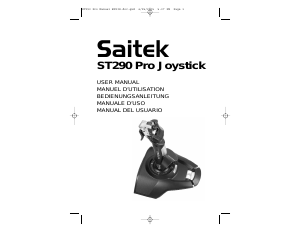
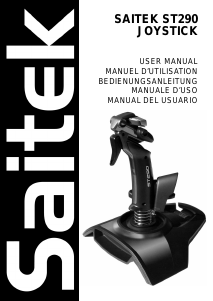
Thank you for purchasing the Saitek ST290 Pro Joystick. The ST290 Pro delivers unique design and styling to
provide gamers with the winning formula at any level. With total adjustability at your fingertips to create the optimum
gaming position and 3-position palm rest to suit all hand sizes the ST290 Pro is custom-made to improve your
gaming.
FEATURES
• Palm Rest Adjustability
• Precision Trigger
• 5 Fire Buttons
• Lever Throttle
• 4-way POV Hat Switch
• True Ambidextrous Design
GETTING STARTED
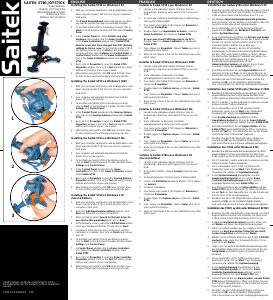
Installing the Saitek ST290 Pro on Windows® XP
1 With your computer switched on and all applications shut down, plug the Saitek ST290 Pro into one of your
computer’s USB ports.
2 The Found New Hardware callout will appear to inform you that the joystick has been successfully installed.
3 To test that Saitek ST290 Pro is functioning correctly, click on Start on the Windows® Taskbar and then select
Control Panel.
4 In the Control Panel list, select Printers and other Hardware, then double-click the Game Controllers icon.
In the Game Controllers window select Saitek ST290 Pro.
Note for users who have changed their XP® Desktop settings to Classic view: To test that the Saitek
ST290 Pro is functioning correctly, click on Start on the Windows® Taskbar and then select Settings and
Control Panel. In Control Panel, double-click the Game Controllers icon, then in the Game Controllers
window select Saitek ST290 Pro.
5 Next, click on Properties to open the Saitek ST290 Pro Properties window. Click on the Test tab and try out
the buttons and controls of your new joystick. The button and trigger indicators should light up as you press the
corresponding control and the throttle indicator should move up and down when you move the throttle through
its full range of movement.
6 After testing your joystick, click OK twice to finish. Now it’s time to load your favorite game and enjoy the fun!
Installing the Saitek ST290 Pro on Windows® 2000 and Me
1 With your computer switched on and all applications shut down, plug the Saitek ST290 Pro into one of your
computer’s USB ports.
2 Your computer will automatically detect and load the drivers for your new joystick.
3 To test that your Saitek ST290 Pro is functioning correctly, click on Start on the Windows® Taskbar and then
select Settings and Control Panel.
4 In the Control Panel, double-click the Game Controllers icon, then in the Game Controllers window select
Saitek ST290 Pro.
5 Next, click on Properties to open the Saitek ST290 Pro Properties/ Gaming Options Properties window.
Click on the Test tab and try out the buttons and controls of your new joystick. The button and trigger indicators
should light up as you press the corresponding control and the throttle indicator should move up and down
when you move the throttle through its full range of movement.
6 After testing your joystick, click OK twice to finish. Now it’s time to load your favorite game and enjoy the fun!
Installing the Saitek ST290 Pro on Windows® 98 (Second Edition)
1 With your computer switched on and all applications shut down, plug the Saitek ST290 Pro Joystick into one of
your computer’s USB ports.
2 When the Add New Hardware Wizard appears, click Next and follow the on-screen instructions.
3 When prompted, select Search for the best driver for your device (Recommended) and click on Next.
4 At the following screen, select the CD-ROM drive option, insert your Windows® 98 (SE) CD and click on Next.
5 Continue to follow the on-screen instructions until the installation is complete, then click on Finish and remove
your CD.
6 To test that your Saitek ST290 Pro is functioning correctly, click on Start on the Windows® Taskbar and then
select Settings and Control Panel.
7 In Control Panel, double-click the Game Controllers icon, then in the Game Controllers window, select
Saitek ST290 Pro.







Delta i konversationen om denna produkt
Här kan du dela vad du tycker om Saitek ST290 Pro Spelkontroll. Om du har en fråga, läs först noggrant igenom manualen. Att begära en manual kan göras genom att använda vårt kontaktformulär.