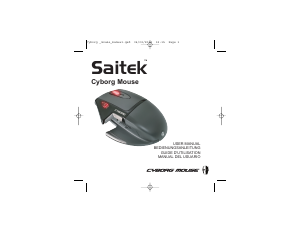
Bruksanvisning Saitek Cyborg V.3 Mus

Behöver du en bruksanvisning för din Saitek Cyborg V.3 Mus? Nedan kan du se och ladda ner PDF-bruksanvisningen gratis på svenska. Den här produkten har för närvarande 4 vanliga frågor, 0 kommentarer och har 0 röster. Om det här inte är bruksanvisningen du vill ha, vänligen kontakta oss.

Är produkten defekt och erbjuder bruksanvisningen ingen lösning? Gå till ett Repair Café för gratis reparationstjänster.

Bruksanvisning

Loading…
System Compatibility
PC running Windows XP/XP64/Vista
Software installation for users of Windows® XP, XP64 and Vista
A) Drivers Only
1. With your computer switched on, close down any programs that are currently running and
insert the Installation CD into your CD-ROM drive.
2. When the Introduction Screen appears, click Install Software to continue. If the CD does not
run automatically, select Start from the Windows® Taskbar, then Run and type D:\Setup.exe
and click OK - where D:\ is letter of your CD-ROM drive. For Vista users, the screen will ask
Do you want to run this file? Press Run. A screen will now appear saying A program needs
your permission to continue. Press Continue.
3. When the Welcome screen appears, click Next to continue.
4. After reading the Disclaimer, select the I accept the terms of the Disclaimer option and click
Next to continue.
5. Plug the USB cable into one of your computer's USB ports and click on Next.
6. At the Registration screen, select Check this box to register now and follow the on-screen
instructions, or you can choose to select this option later.
7. Click on Finish to complete the installation.
B) Drivers and Programming Software
Follow points 1 - 7 of the install procedure in A), then at the Software Setup screen, select Install
the SST Programming Software and click Next. For Vista users, the screen will once again ask Do
you want to run this file? Press Run. A screen will now appear saying A program needs your
permission to continue. Press Continue.
In the following Software Setup screen, click Next and follow the on-screen instructions. At this
point Vista users will be asked to install the Saitek Magic Bus and XP users asked to install the
Saitek Magic Mouse, HID-compliant mouse, Saitek Magic Keyboard and HID Keyboard Device
(these are what Windows calls the Programming elements of your Saitek controller). Continue to
click on Next and Finish to accept the installation until the Registration screen appears.
At the Registration screen, select Check this box to register now and follow the on-screen
instructions, or do not select this option and register later.
Upon completion of the installation, you have the option to Run Profile Editor, which will give you a
view of the programming environment. If you do not wish to see the Profile Editor at this point, just
uncheck the box and click on Finish to complete the installation.
SAITEK CYBORG V.3 MOUSE
Getting Started
Congratulations on purchasing the Saitek Cyborg V.3 Mouse. The mouse offers a range of
programmable gaming functions, backlighting and gaming ergonomics, plus 2400 dpi resolution for
high-speed, highly accurate tracking.
Important Information
Some experts believe that using any mouse or trackball may cause serious injury to hands, wrists,
arms, neck, or back. If you feel pain, numbness, or weakness in these areas, please consult a
qualified health professional immediately.
To reduce the risk of injury, please follow these precautions:
Take frequent breaks, get up and walk around several times every hour.
Vary your tasks throughout the day.
Keep your shoulders relaxed with your elbows at your side. Position your keyboard and mouse
so you do not have to reach.
Adjust your chair and keyboard so your upper arms and wrists are straight.
Avoid resting your wrists on sharp edges.
2
3
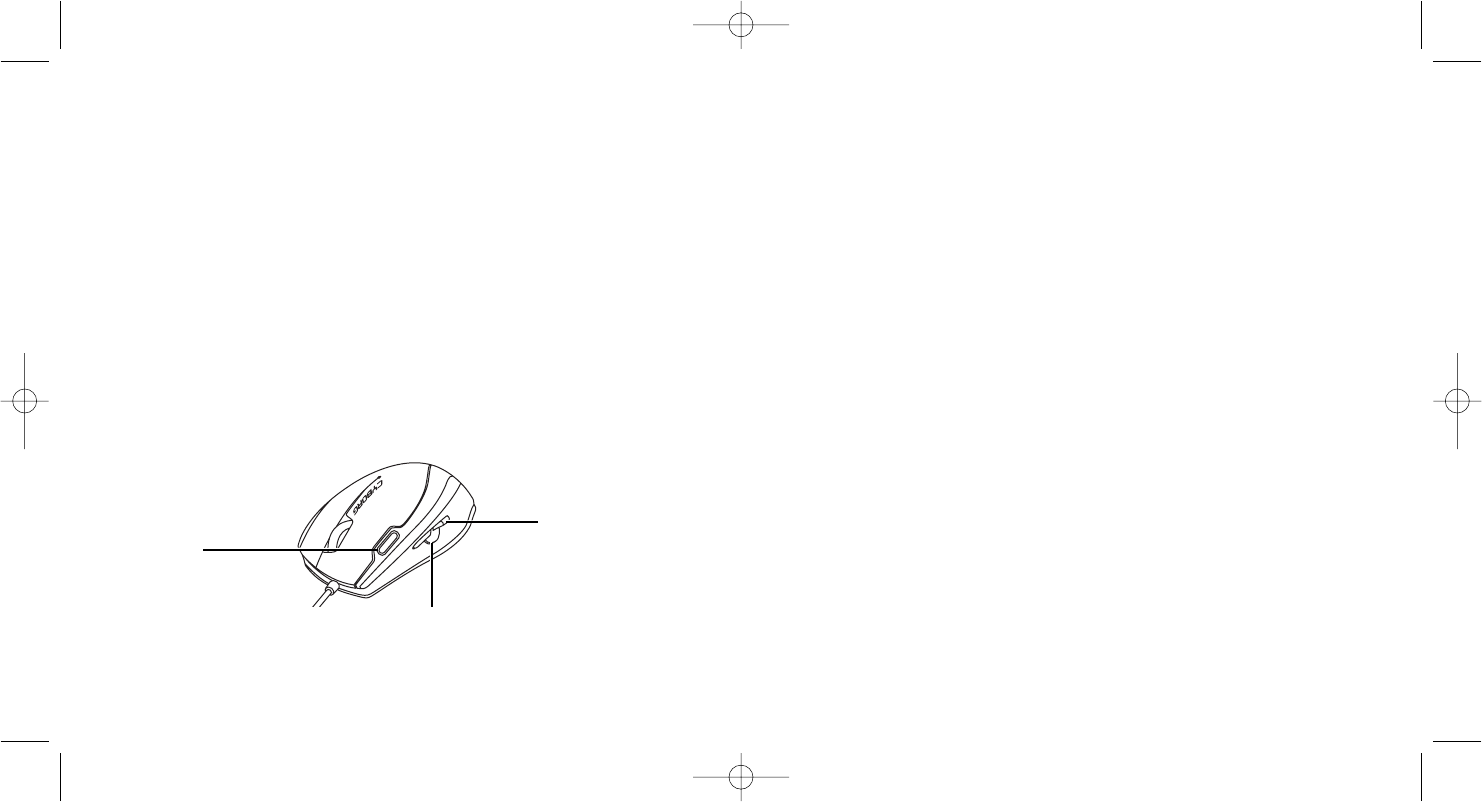
Front top button (mode
selector)
The button at the front
left of the mouse
switches modes to
change mouse sensitivity
when using the Saitek
Smart Technology default
software profile. The
green LEDs on the side
of the mouse indicate
which mode is selected.
Front and back
side buttons
The buttons on the side of
the mouse can perform a
range of functions
depending on how they are
programmed. As a default,
they operate as Internet
forward and back buttons
when using a web browser
to move to next web page
or last page visited.
Mouse Buttons
As well as the typical left and right buttons with scroll wheel and wheel button, the Saitek Cyborg
V.3 Mouse has four other buttons offering extra functionality.
Central side button
The central side button has no
default function in Windows.
However, using the Saitek Smart
Technology Software profile this
button opens internet favourites.
PM70_manual.qxd 27/04/2009 15:39 Page 2
Ladda ner bruksanvisning i Engelska (PDF, 0.31 MB)
(Tänk på miljön och skriv endast ut denna bruksanvisning om det verkligen är nödvändigt)

Loading…

Betyg

Berätta vad du tycker om Saitek Cyborg V.3 Mus genom att betygsätta den. Vill du dela med dig av dina åsikter om denna produkt eller ställa en fråga? Lämna en kommentar nederst på sidan.
Är du nöjd med Saitek Cyborg V.3 Mus?
Ja Nej
Bli den första personen som betygsätter denna produkt
0 röster

Delta i konversationen om denna produkt

Här kan du dela vad du tycker om Saitek Cyborg V.3 Mus. Om du har en fråga, läs först noggrant igenom manualen. Att begära en manual kan göras genom att använda vårt kontaktformulär.

Mer om denna bruksanvisning

Vi förstår att det är trevligt att ha en pappersbruksanvisning för din Saitek Cyborg V.3 Mus. Du kan alltid ladda ner bruksanvisningen från vår hemsida och skriva ut den själv. Om du vill ha en originalbruksanvisning rekommenderar vi att du kontaktar Saitek. De kanske kan tillhandahålla en originalbruksanvisning. Letar du efter bruksanvisningen för din Saitek Cyborg V.3 Mus på ett annat språk? Välj ditt föredragna språk på vår hemsida och sök efter modellnumret för att se om vi har det tillgängligt.

Specifikationer

Märke Saitek
Modell Cyborg V.3
Kategori Musar
Filtyp PDF
Filstorlek 0.31 MB

Alla bruksanvisningar för Saitek Musar
Fler bruksanvisningar för Musar

Vanliga frågor om Saitek Cyborg V.3 Mus

Vårt supportteam söker efter användbar produktinformation och svar på vanliga frågor. Om du hittar en felaktighet bland våra vanliga frågor uppskattar vi om du meddelar oss detta via vårt kontaktformulär.

Vilken yta passar bäst att använda musen på? Verifierad

En traditionell mus med styrkula fungerar bäst på en vadderad yta, till exempel en musmatta. En optisk mus fungerar på nästan alla typer av plana ytor, utom genomskinliga eller reflekterande ytor. Ytor med ett tryckt återkommande mönster kan störa musens funktion.

Detta hjälpte (127) Läs mer

Vad är en ergonomisk mus? Verifierad

Daglig användning av en vanlig mus under långa perioder kan leda till smärta i armen och handleden. Detta kallas också RSI (Repetitive Strain Injury). En ergonomisk mus är formad för att minska dessa problem eller förhindra dem.

Detta hjälpte (59) Läs mer

Vad är skillnaden mellan en vanlig mus och en spelmus? Verifierad

Varje spelmus kan användas som en vanlig mus. En spelmus har dock ofta ytterligare knappar på specifika platser för att göra spelet enklare. Det finns till och med spelmöss som har knappar som är avsedda att bättre spela ett specifikt spel.

Detta hjälpte (58) Läs mer

Vilken storlek mus passar bäst för min hand? Verifierad

Detta beror delvis på personlig preferens och nödvändighet, men i allmänhet bör en mus vara cirka 60% av storleken på din hand. Detta är det mest bekväma och mest ergononiska.

Detta hjälpte (54) Läs mer
Bruksanvisning Saitek Cyborg V.3 Mus

Relaterade produkter

Relaterade kategorier

×
Download