3
Select Show Info > MENU > Comm. Settings.
4
Select an unassigned and nonconflicting ID.
5
Change the update rate (optional).
The 30-second and two-minutes rates reduce battery drain,
but they record less-detailed dog tracks and statistics.
6
Bring the handheld device within a few feet of the dog collar
device.
7
Follow the on-screen instructions.
About Collar Lock
You can use the collar lock feature to protect your dog's ID
signal using a PIN. Other users with handheld devices must
enter the PIN in order to track your dog. Other users with
handheld devices can still add your dog by physically touching
their handheld device to the dog collar device.
Activating Collar Lock
Before you can activate collar lock, you must turn on the dog
collar device and bring it within 10 feet (3 m) of the handheld
device.
NOTE: If you forget the PIN, you can override the collar lock
feature by physically touching the handheld device to the dog
collar device.
1
Select DOG > ENTER > MENU.
2
Select Change PIN.
3
Enter a unique PIN.
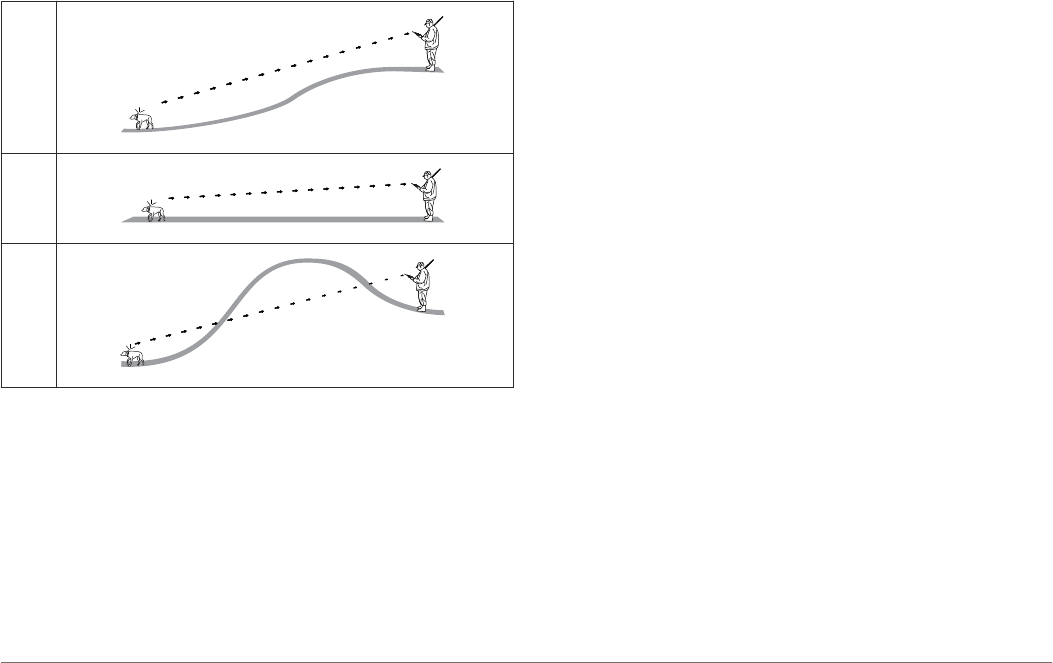
Communication with the Collar
The handheld device and dog collar device use radio signals to
communicate. Objects in the path of radio signals degrade the
quality of the signals. Keeping an unobstructed line of sight
between your handheld device and your dog’s dog collar device
produces the best communication signal. Obstructed radio
waves result in a poor signal. To achieve the best line-of-sight
conditions, you should move to the highest elevation point in
your area (for example, on the top of a hill).
Best
Good
Poor
Tracking with BaseCamp™ BaseStation
Before you can track your dogs and contacts using BaseCamp,
you must download BaseCamp to your computer
(www.garmin.com/basecamp).
The BaseStation feature of BaseCamp allows you to track your
dogs and contacts in real-time on a computer. For more
information on using BaseCamp, see the help file in the
application.
1
Select Setup > System > BaseCamp Basestation >
Prompted.
2
Open BaseCamp.
3
Follow the on-screen instructions.
Waypoints, Routes, and Tracks
Waypoints
Waypoints are locations you record and store in the device.
Marking Your Vehicle Location
You can mark the location of your vehicle so you can navigate
back to your vehicle after a hunt.
1
From the main menu, select Start New Hunt.
2
Follow the on-screen instructions.
Marking Your Current Location
1
Select MARK.
2
Select an option:
• Select New.
• Select a default location name, such as Truck or Camp.
3
Select Save.
Marking a Covey
You can mark a covey location and enter the estimated number
of birds flushed and the number of birds taken.
1
Select MARK.
2
Select Covey.
3
Enter the number of birds flushed.
4
Enter the number of birds taken.
5
Select OK.
Marking a Waypoint Using the Map
1
Select MAP.
2
Select a location on the map.
3
Select ENTER > MENU > Save as Waypoint.
Navigating to a Waypoint
1
From the main menu, select Find > Waypoints.
2
Select a waypoint.
3
Select Go.
Editing a Waypoint
Before you can edit a waypoint, you must create a waypoint.
1
From the main menu, select Tools > Waypoint Mgr..
2
Select a waypoint.
3
Select an item to edit, such as the name.
4
Enter the new information.
Finding a Waypoint by Name
1
From the main menu, select Find > Waypoints > MENU >
Spell Search.
2
Enter the name.
Matches appear as you select characters in the name.
3
Select the waypoint.
Finding a Waypoint Near Another Waypoint
1
From the main menu, select Tools > Waypoint Mgr..
2
Select a waypoint.
3
Select MENU > Find Near Here.
4
Select a category.
The list includes waypoints near the original waypoint.
Moving a Waypoint on the Map
1
From the main menu, select Tools > Waypoint Mgr..
4 Waypoints, Routes, and Tracks


Delta i konversationen om denna produkt
Här kan du dela vad du tycker om Garmin Astro 320 + DC 50 Elektronisk krage. Om du har en fråga, läs först noggrant igenom manualen. Att begära en manual kan göras genom att använda vårt kontaktformulär.